
easy.jobs now lets you connect your favorite AI assistant, such as Claude, ChatGPT or Cursor, directly to your hiring account using MCP (Model Context Protocol). Once connected, you can manage your hiring just by asking in plain English. Create job posts, review applicants, shortlist candidates, send messages and get hiring reports, all without clicking through the dashboard.
Every change starts with a preview, so your AI assistant always shows you what will happen and waits for your 'Да' before it creates, changes or sends anything. It can also only see and do what you are allowed to do in easy.jobs. Keep in mind that the candidate data you ask about (such as names, emails, resumes, answers and messages) is shared with the AI provider you connect, so check that this fits your company’s privacy policy and candidate consent.
Before you start: MCP is available on the easy.jobs Pro plans. Only team members with the Settings → Others permission (usually admins) can see the MCP settings in Step 1, so if you don’t see the MCP tab, ask your company admin.
Connect easy.jobs with Your AI Assistant in 5 Steps #
Follow the guidelines below to learn how to connect easy.jobs with your AI assistant in a few clicks.
Step 1: Enable MCP Access from the Dashboard #
Sign in to your easy.jobs account with your credentials. From the dashboard, navigate to 'Настройки' → Передовой → MCP. Here, you will find the ‘AI assistants’ section. Turn on the ‘Enable MCP access’ toggle. The status will change from ‘Off’ к ‘Active’.
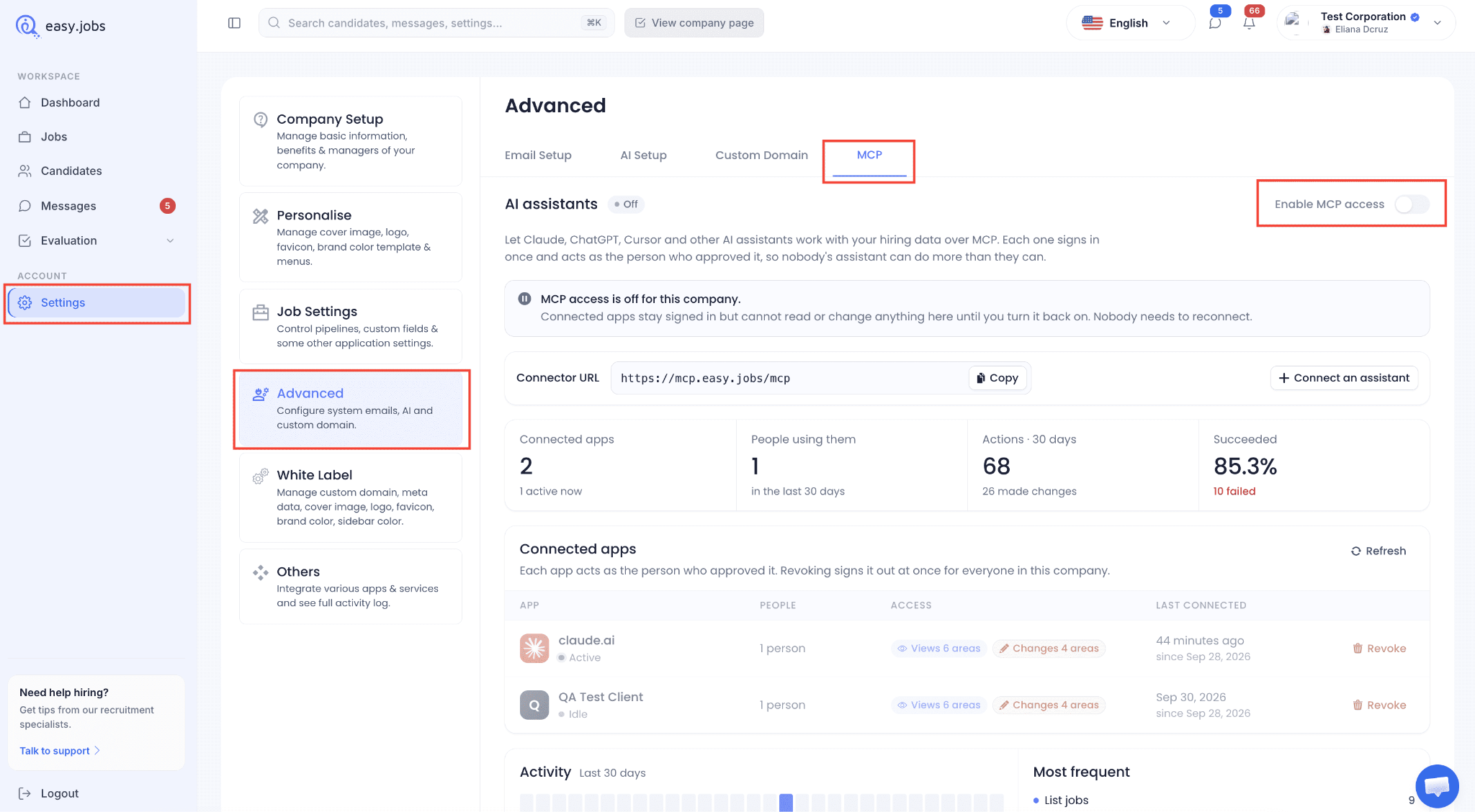
Примечание: If you turn MCP access off later, connected apps stay signed in but cannot read or change anything in your company until you turn it back on. Nobody needs to reconnect.
Step 2: Choose Your AI Assistant #
Нажмите на ‘+ Connect an assistant’ button next to the Connector URL field. A ‘Connect an assistant’ panel will appear. Select the AI assistant you use: Claude, ChatGPT, Cursor, VS Code, Claude Code или Другой. easy.jobs will show you the setup steps for your chosen assistant.
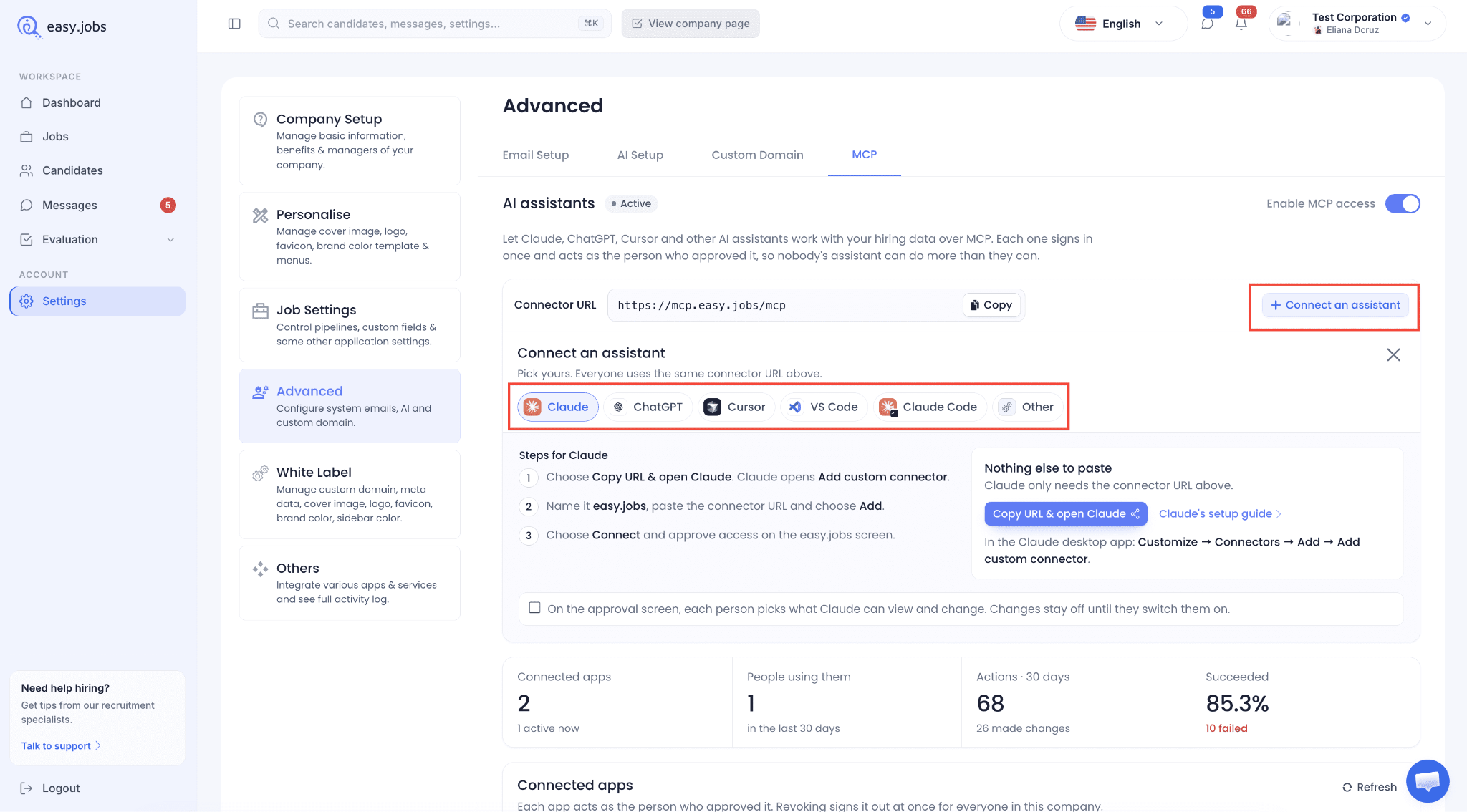
Примечание: For other AI assistants, the Connect panel shows the exact steps for each one. Here is a quick overview:
| AI assistant | How to connect |
| Claude | Click ‘Copy URL & open Claude’, name the connector easy.jobs, paste the URL and click ‘Add’. |
| ChatGPT | Click ‘Copy URL & open ChatGPT’, then go to Add → Add custom MCP server and paste the URL. |
| Cursor | Click the one-click ‘Add to Cursor’ button. |
| VS Code | Click the one-click ‘Add to VS Code’ button. |
| Claude Code | Run /mcp and choose easyjobs. |
| Другой | Add a new connector in your AI assistant’s settings (often called Connectors, Integrations, Apps, Tools or MCP servers) and paste the connector URL. |
Step 3: Add easy.jobs as a Connector in Your AI Assistant #
In this guide, we are using Claude as an example. Click the ‘Copy URL & open Claude’ button. Claude will open the ‘Add custom connector’ window for you. If you are using the Claude desktop app, go to Customize → Connectors → Add → Add custom connector.
Now, name the connector easy.jobs, paste the connector URL and click the ‘Add’ кнопка.
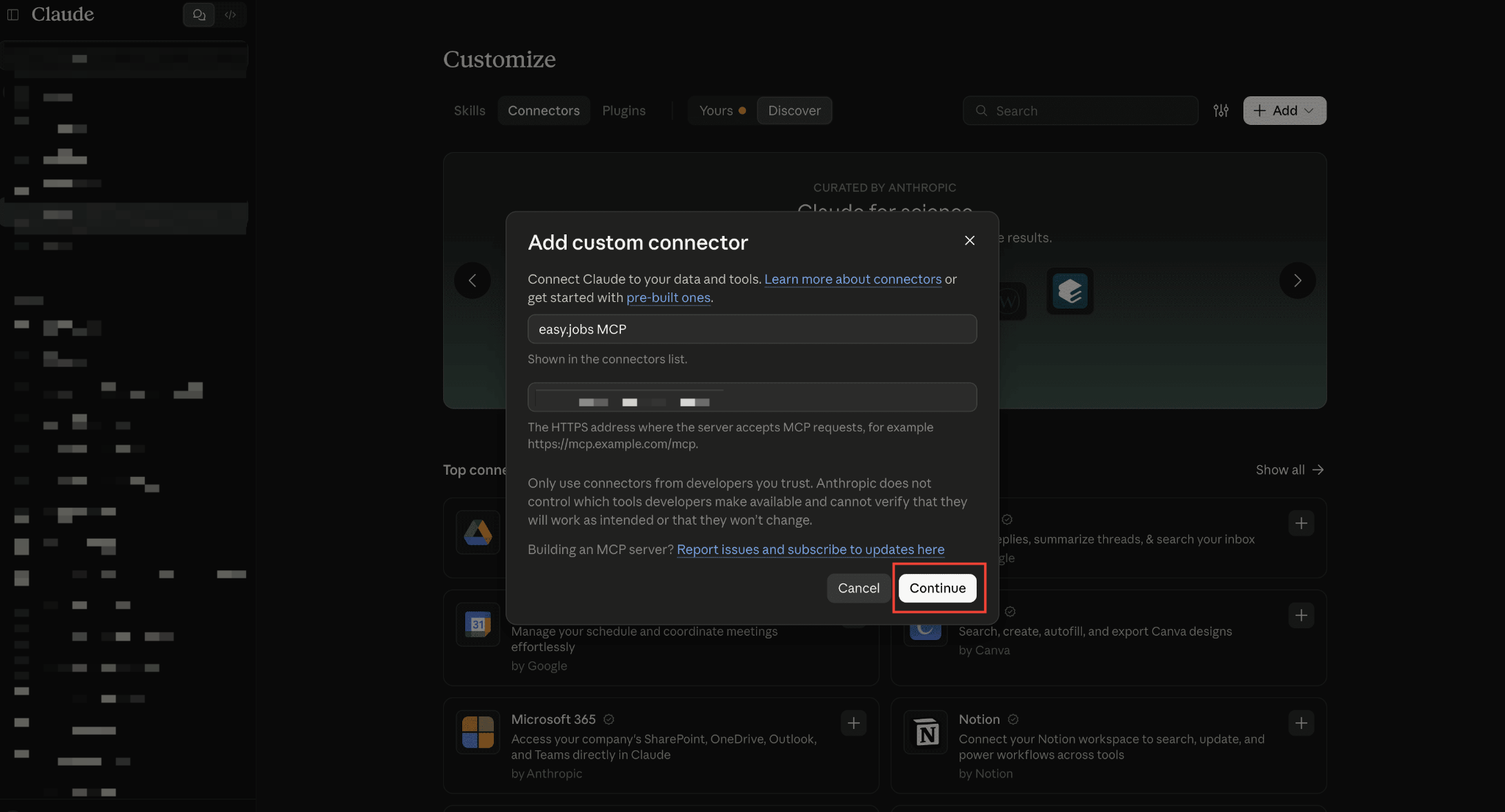
Примечание: For other AI assistants, the steps are almost the same. Look for Connectors, Интеграции, Apps, Инструменты или MCP servers in your AI assistant’s settings, add a new connector and paste the easy.jobs connector URL.
Step 4: Sign In And Approve Access #
Нажмите на ‘Connect’ button. You will be asked to sign in to your easy.jobs account. If you are already signed in, you may see an option to continue with your easy.jobs session instead. After signing in, you will see the easy.jobs approval screen with two sections:
- It will be able to view: Companies, Jobs, Candidates, Assessments, Inbox and Analytics.
- It will be able to change: Off unless you switch it on. It can’t delete jobs or candidates.
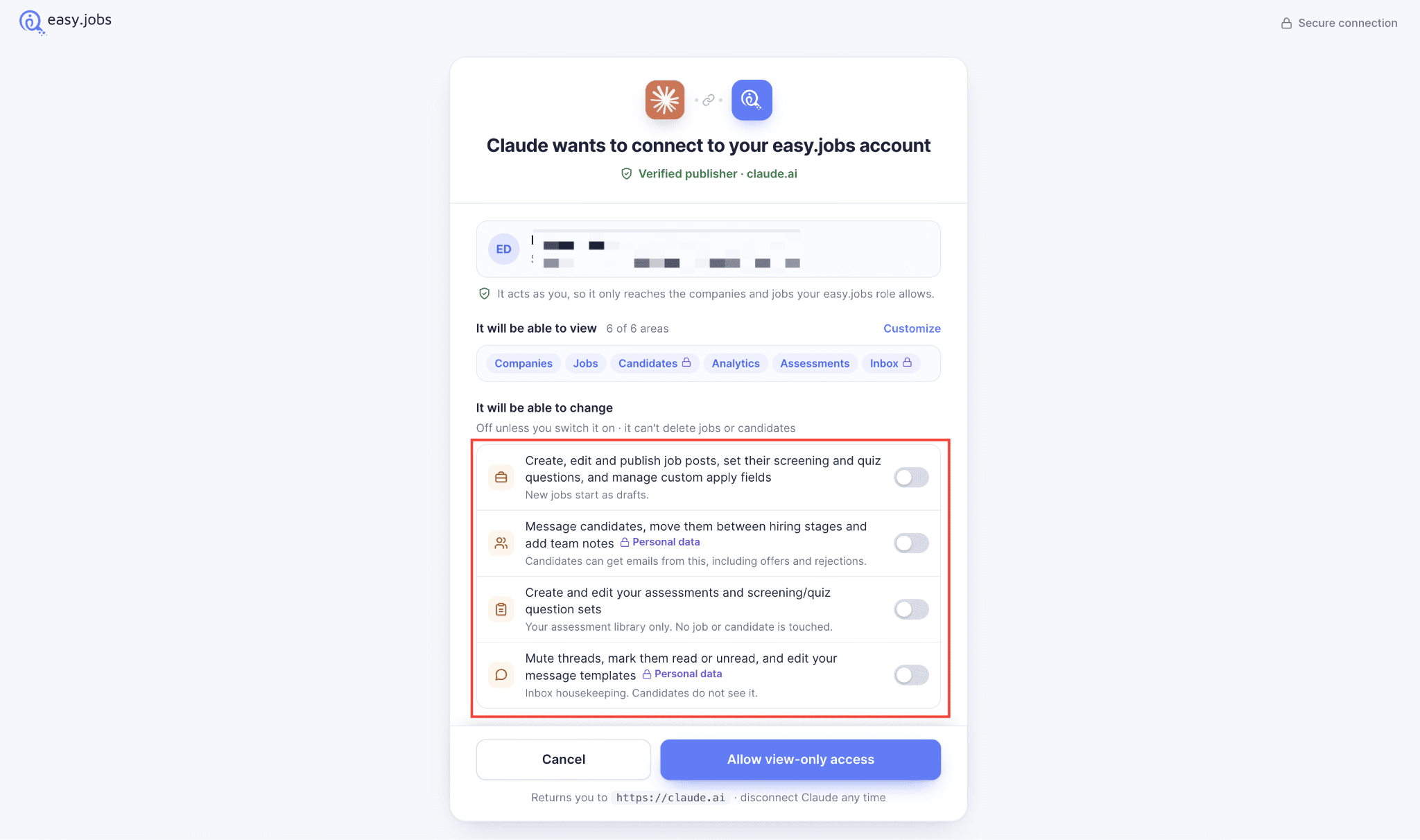
On this screen, you can choose what your AI assistant can view and what it can change. Changes stay off until you switch them on. If you want your AI assistant to create jobs, move candidates or send messages for you, make sure to turn on the change permissions as well.
Then, click the ‘Allow access’ button. If you didn’t switch on any changes, the button reads ‘Allow view-only access’. One approval covers every easy.jobs company you manage, and your AI assistant picks the right company for each request.
Шаг 5: Turn On the Connector And Check It Worked #
Start a new chat in your AI assistant and make sure the easy.jobs connector is switched on for that chat. Then, ask the following question to confirm everything is working:
Which easy.jobs company am I connected to, and what’s my role?
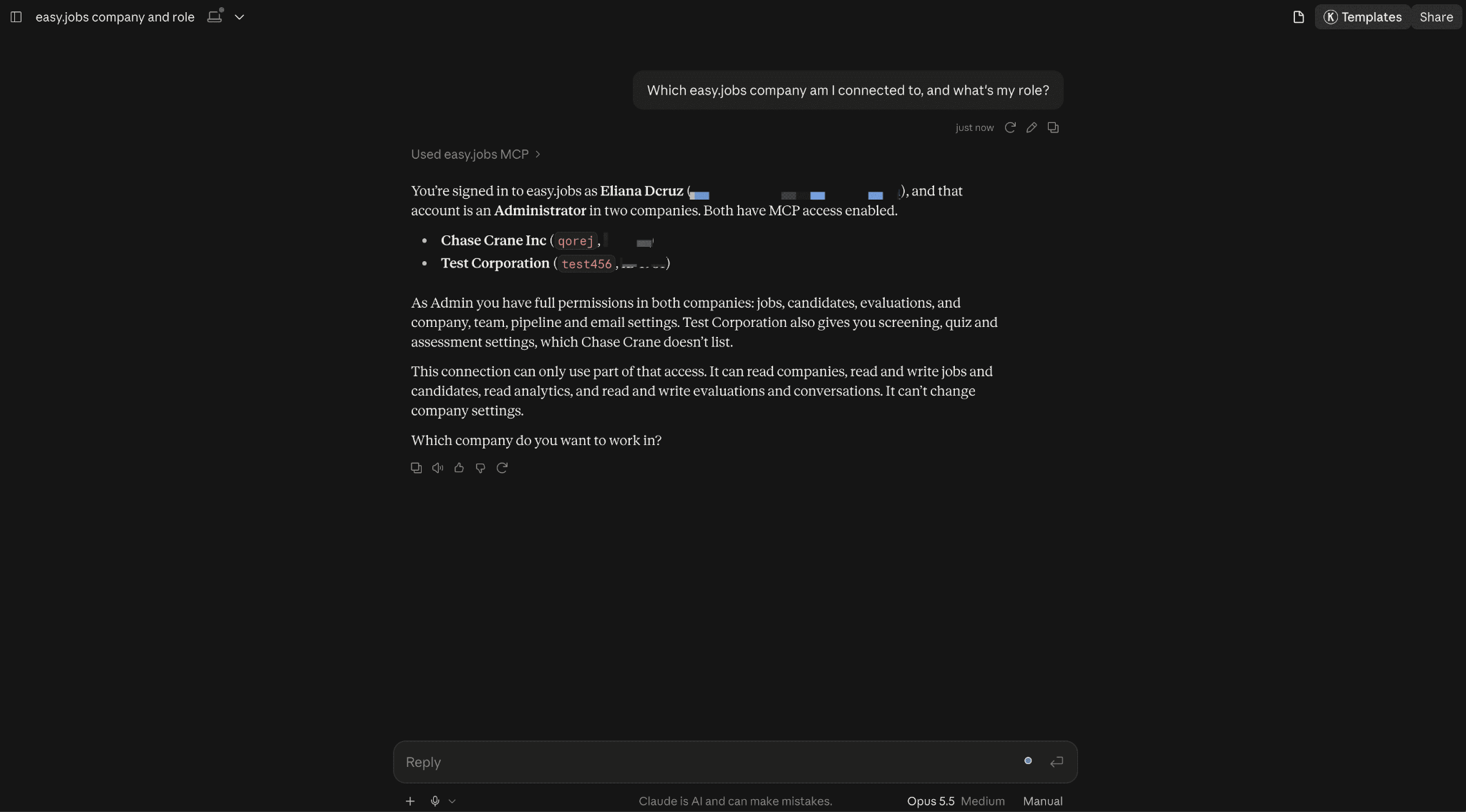
Your AI assistant will reply with your company name and your role in easy.jobs.
What Can You Do with easy.jobs in Your AI Assistant? #
Once connected, you can ask your AI assistant to handle most of your daily hiring tasks:
- Job Posts: See all your jobs (live, drafts and archived) with applicant counts, create new job posts with the description, requirements and skills written for you, edit salary or deadlines, and publish a job to get its public link.
- Application Form: Choose which fields candidates must fill in and add new fields, such as ‘Portfolio URL’.
- Screening Questions & Quizzes: Add screening questions, add timed quizzes that are graded automatically and save questions to reuse later.
- Reviewing Candidates: See everyone who applied, get a summary of each candidate’s work history, answers and quiz score, and compare candidates.
- Moving Candidates Forward: Move candidates to the next stage, add private team notes, reject candidates (with or without an email) and mark a candidate as hired (with or without sending the offer email).
- Assessments: Create a skills test, send it to candidates with a deadline and check their scores.
- Messages: Check unread candidate messages, send messages and save message templates.
- Reports: Get a hiring summary across all jobs and see how many people visited your careers page.
Примечание: Your AI assistant can summarize and compare candidates, but you always make the hiring decision.
Example Requests You Can Try #
Copy any of these into your AI assistant to test. Your AI assistant answers using your live easy.jobs data.
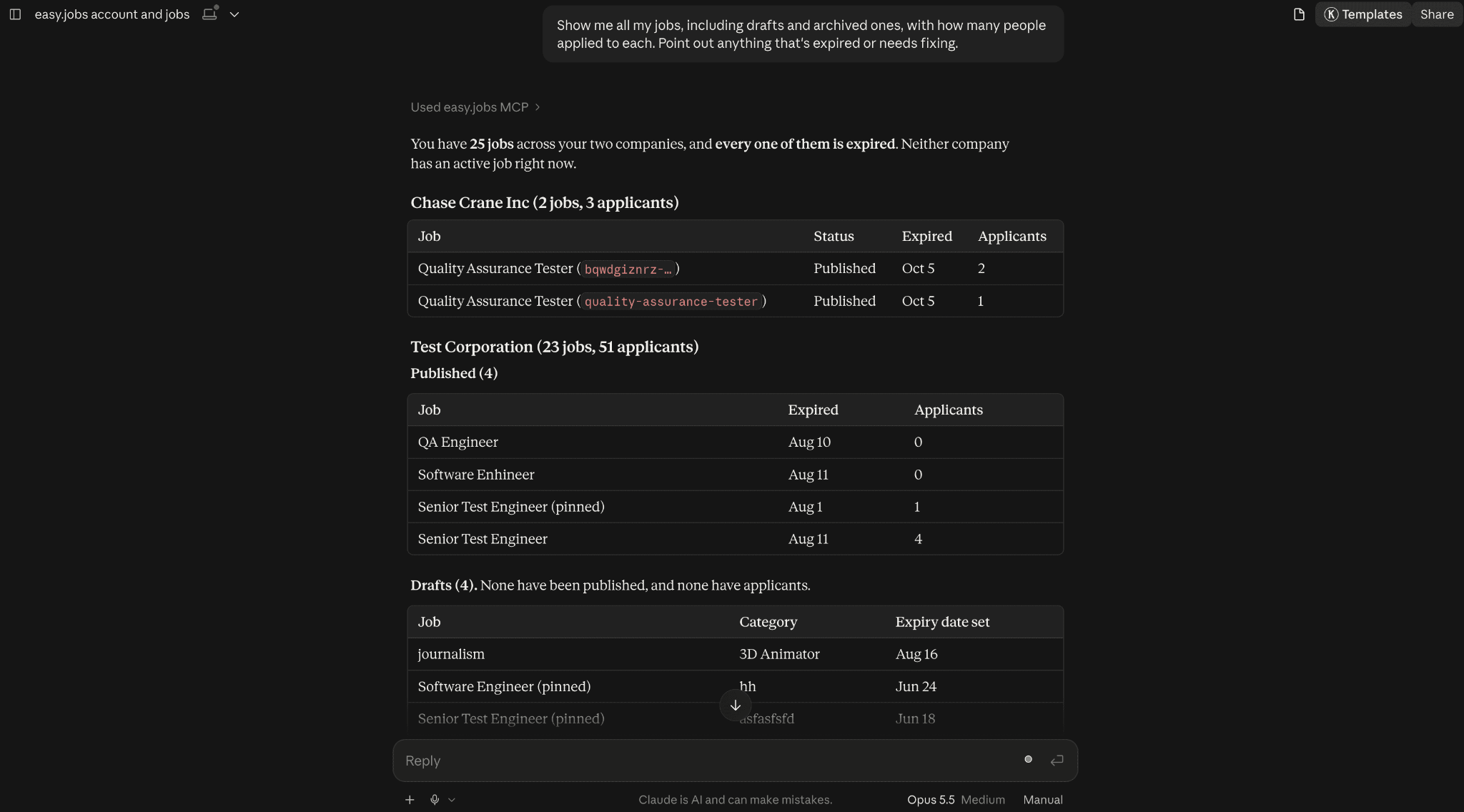
i. Get an overview of your jobs:
Show me all my jobs, including drafts and archived ones, with how many people applied to each. Point out anything that’s expired or needs fixing.
ii. Create a new job post:
Create a job post for a Senior React Developer: remote, United States only, full-time, senior level, 1 opening, $110,000–$130,000 per year, application deadline 30 days from today. Write the description, requirements and responsibilities, and add the skills React, TypeScript, JavaScript, HTML5, CSS3 and Git.
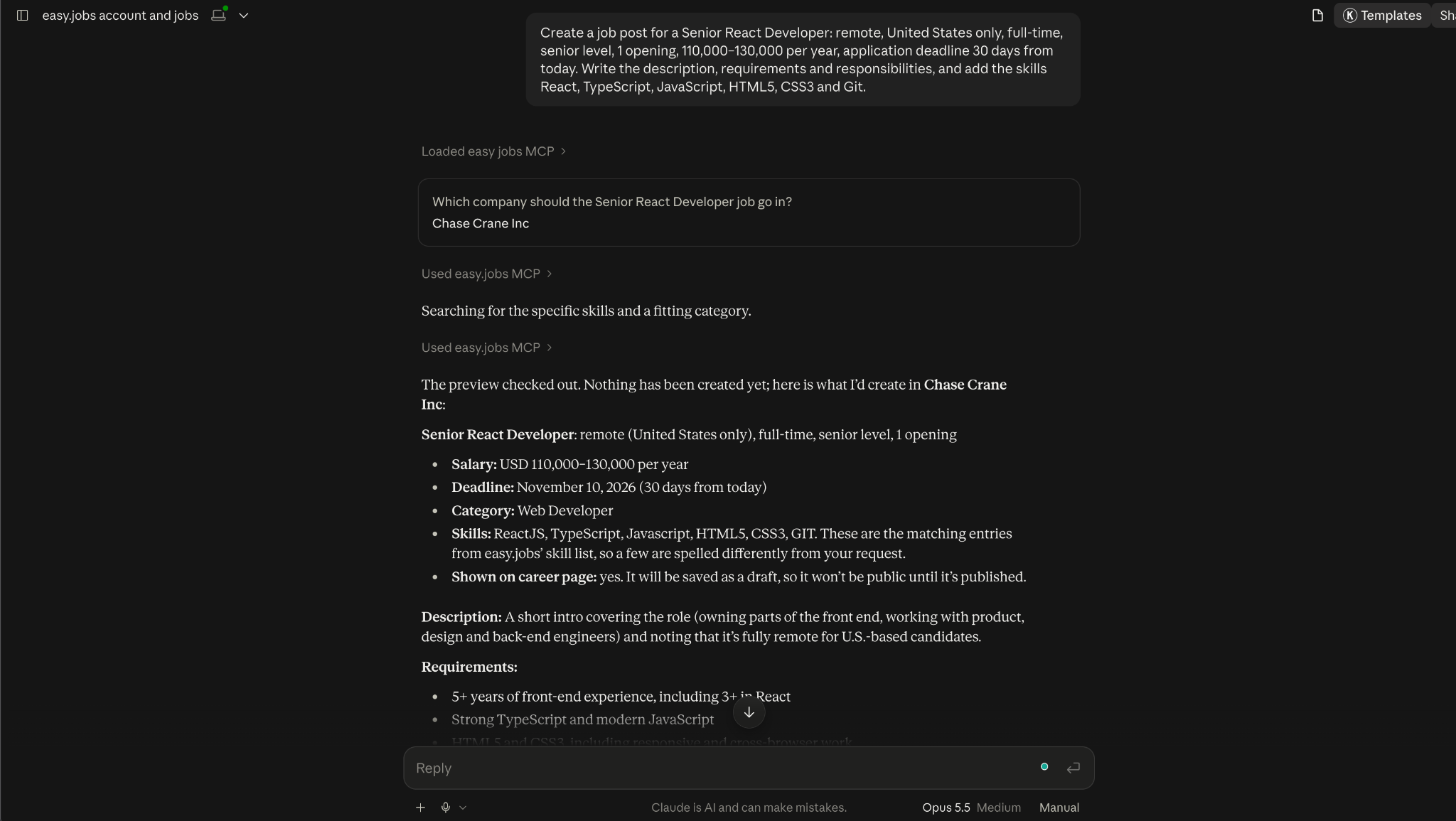
Your AI assistant will show you a preview first. Once you confirm, the job is saved as a draft. It will only go live when you ask your AI assistant to publish it and confirm.
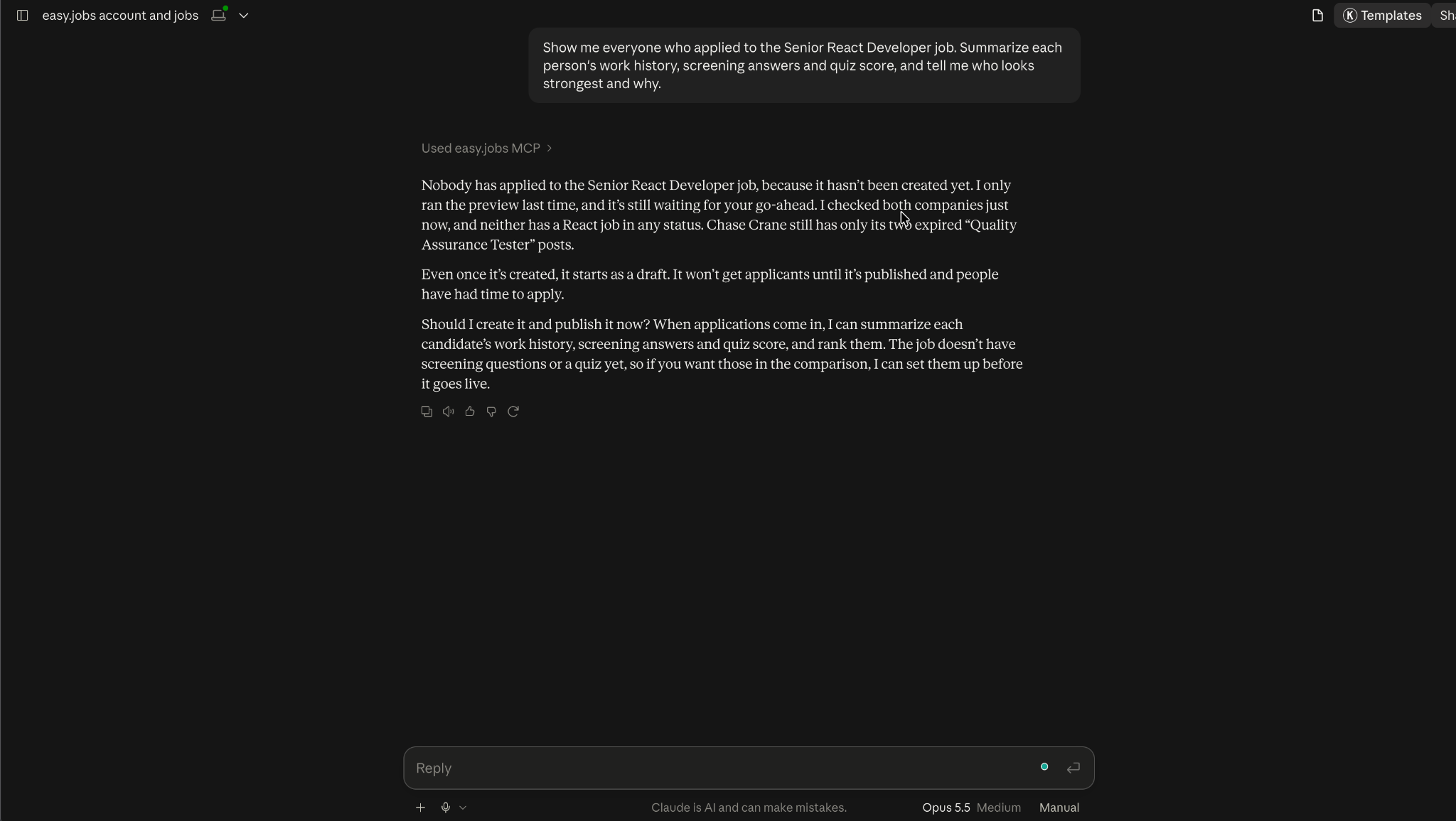
iii. Review and compare applicants:
Show me everyone who applied to the Senior React Developer job. Summarize each person’s work history, screening answers and quiz score, and tell me who looks strongest and why.
iv. Get a hiring summary:
Give me a hiring summary: active jobs, how many people applied to each, where candidates are in the hiring process, and any unread messages.
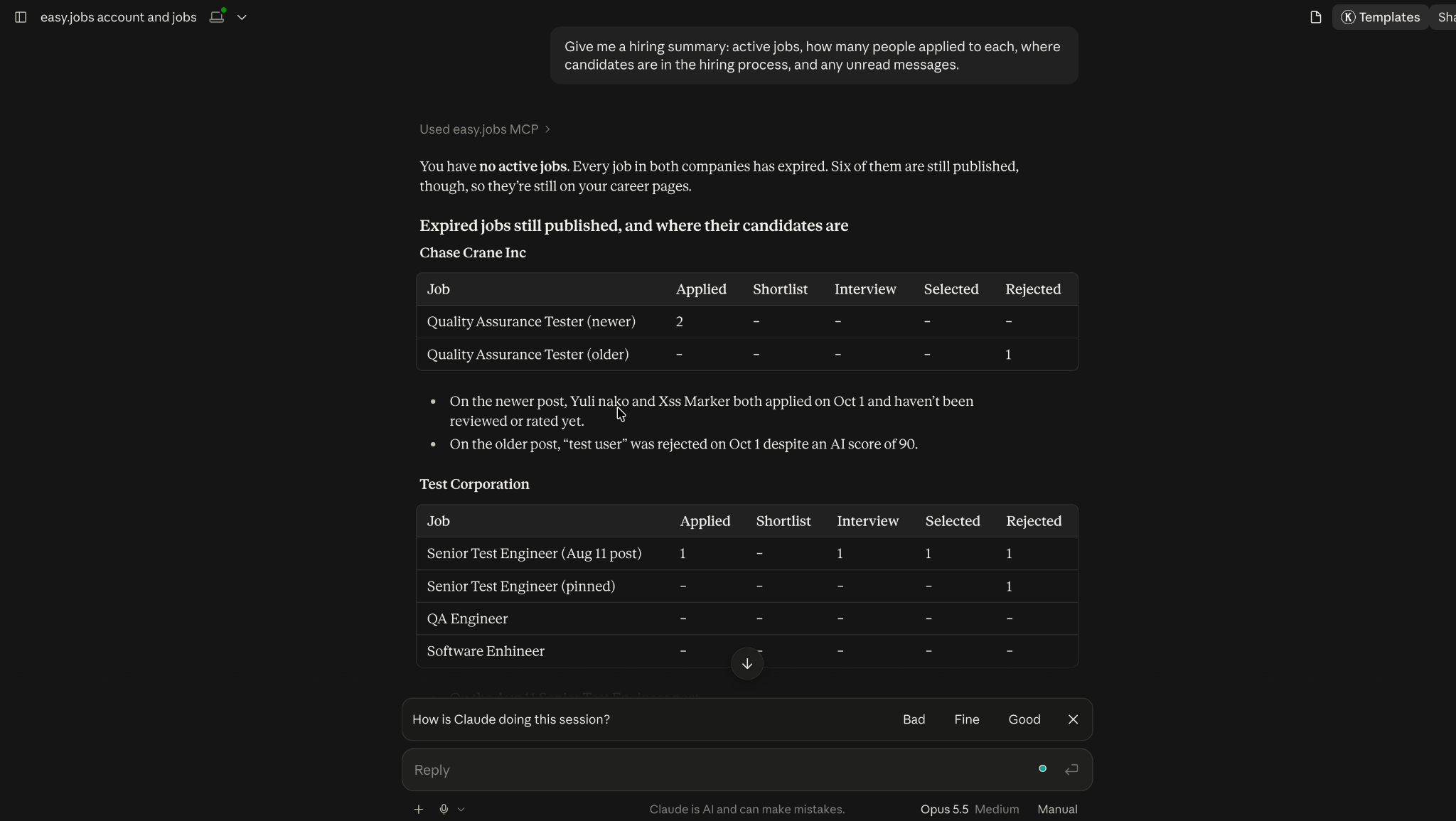
Кончик: Not sure what to ask? Just ask your AI assistant: “What can you do with my easy.jobs account?” Asking a question never changes anything in easy.jobs.
When Do Candidates Get an Email? #
Your AI assistant always asks for your confirmation first, and its preview tells you whether an email will be sent. After you approve, candidates will receive an email when you:
- Send them a message
- Send them an assessment or give them a new deadline for one
- Mark them as hired, unless you tell your AI assistant you’re handling the offer outside easy.jobs
- Reject them, only if you ask for them to be emailed
- Move them to another stage, if your company has the stage-change email turned on (выбранный и Отклоненный have their own email settings)
Mentioning a teammate in a team note also sends that teammate an email. Your teammates may also get emails when you take actions through your AI assistant, such as stage changes, hires, rejections, new messages and job updates. This works the same as in the dashboard and follows each teammate’s notification settings.
How to Monitor & Manage Connected AI Assistants #
From the easy.jobs dashboard, go to Settings → Advanced → MCP. You can keep track of how AI assistants are used in your company:
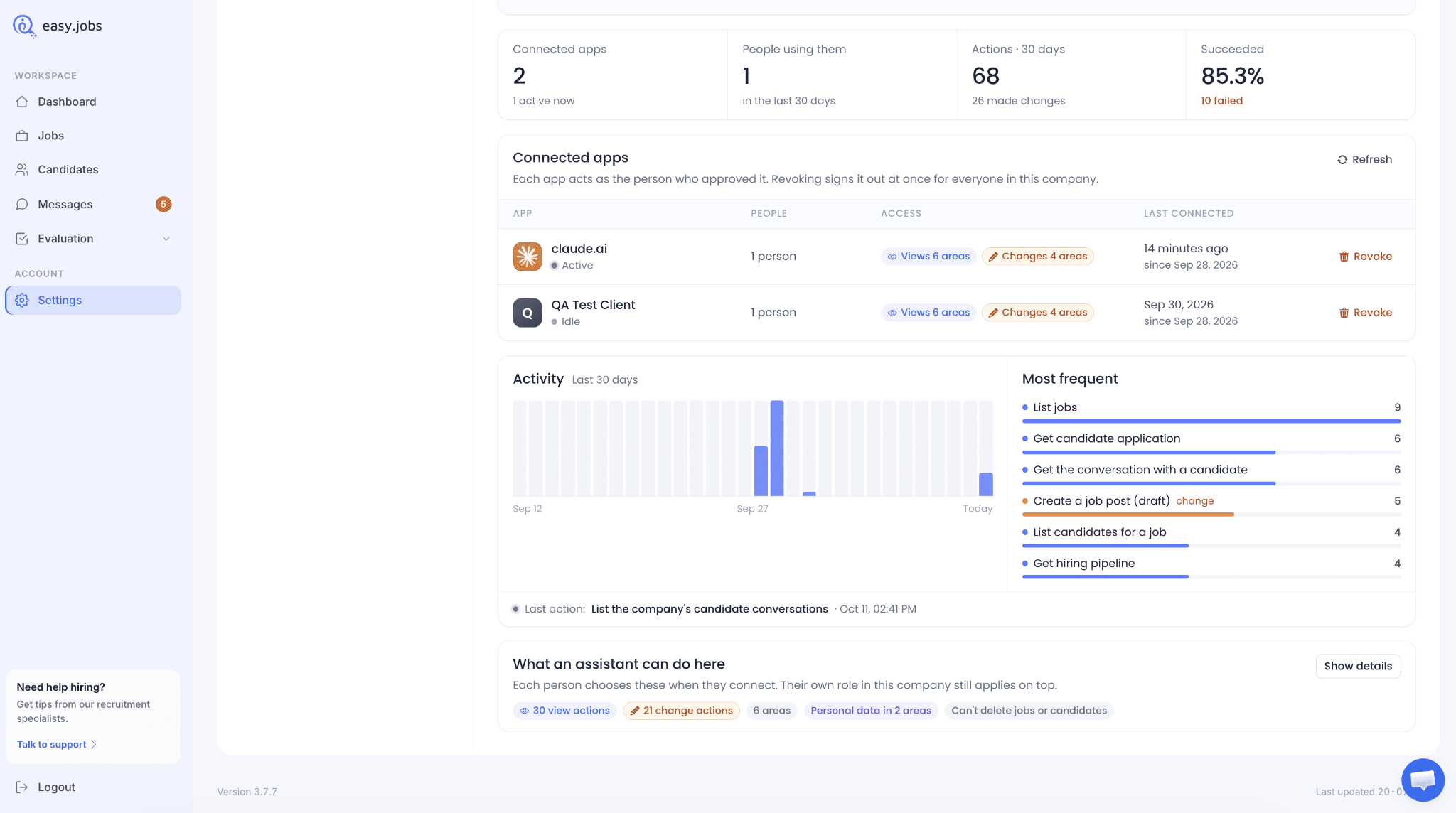
- Overview: See the number of connected apps, people using them, actions in the last 30 days and the success rate.
- Connected apps: See every connected app, how many people use it, what it can access (Views и Changes) and when it was last connected. Click ‘Revoke’ to sign an app out instantly for everyone in your company (and from any other easy.jobs companies they manage). To stop AI assistants for this company only, turn off ‘Enable MCP access’ вместо.
- Activity: View a chart of actions over the last 30 days, the most frequent actions and the last action taken.
- What an assistant can do here: See a summary of all available views and change actions. Click ‘Show details’ to see the full list.
Things You Still Need to Do from the Dashboard #
For safety, a few actions are not available through AI assistants. Please use the easy.jobs dashboard for these:
- Add a job image or banner
- Add or change hiring stages (pipeline)
- Unpublish, archive or delete a job
- Delete a candidate
Troubleshooting #
- Your AI assistant can look things up but says it can’t make changes: Change permissions were not turned on when you connected. Disconnect easy.jobs, connect it again, turn on the change permissions on the approval screen and start a new chat.
- Your AI assistant doesn’t seem to know about easy.jobs: Check that the easy.jobs connector is switched on for the chat you are using.
- Your AI assistant can’t read or change anything: Make sure ‘Enable MCP access’ is turned on under Settings → Advanced → MCP.
- Your AI assistant says MCP is not available, or you see an Upgrade prompt: Your company is on the Free plan. MCP is available on the easy.jobs Pro plans.
- Your AI assistant says MCP access is switched off for this company: An admin has turned it off. Ask them to turn on ‘Enable MCP access’ under Settings → Advanced → MCP.
- Your AI assistant uses the wrong company: If you manage more than one company, tell it which one to use, for example “Use my Acme Inc company.”
- Changes are refused after they worked before: Your role or job permissions have changed. Your AI assistant can only do what you can do in the dashboard.
You can now connect easy.jobs with your AI assistant and manage your hiring just by asking. If you need any help, feel free to связаться с нами или присоединяйтесь к нашему Сообщество Facebook чтобы связаться с другими владельцами компании, как вы.